
How To View And Download Your Photos
Open your gallery from the client portal, then download every photo at once or save your favorites one by one.
Quick Answer
Open Galleries in your client portal, choose Open on your photo gallery, then choose Download All in the toolbar. To save just one photo, hover over it (or tap it on a phone) and choose its download button.
- Galleries in your portal
- Full Gallery or single photos
- Photos, Film, RAW by event
Your photos, film and RAW files live in your Candid Studios client portal under Galleries, organized by event. From there you can open your gallery, download everything at once, or save individual photos.
Step 1
Open Galleries In Your Client Portal
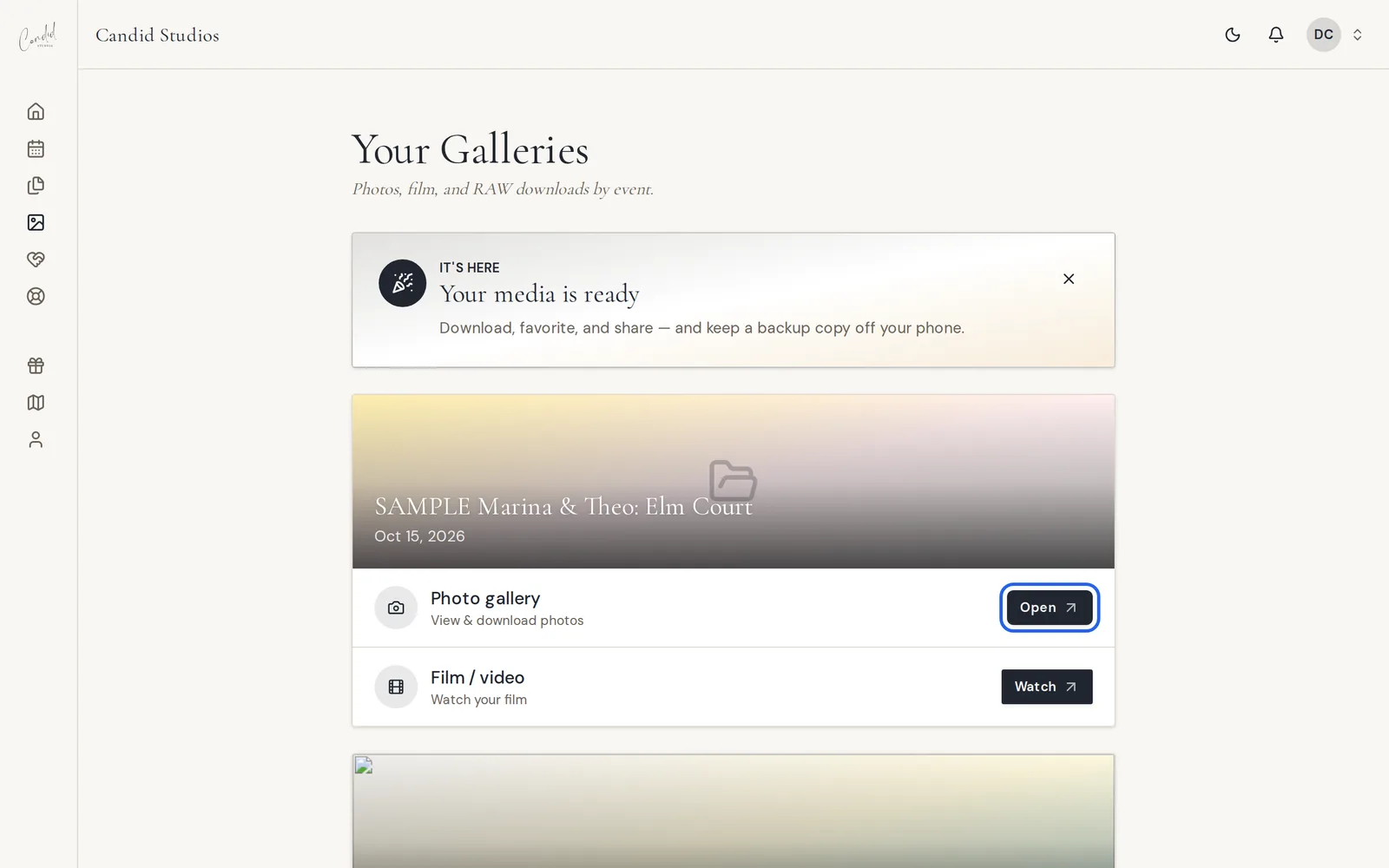
Sign in to your client portal and choose Galleries in the sidebar. Each event has its own card:
- Photo gallery: view and download your photos. Choose Open.
- Film / video: choose Watch to see your film.
- RAW photos: choose Download for the RAW files.
Step 2
Download The Whole Gallery
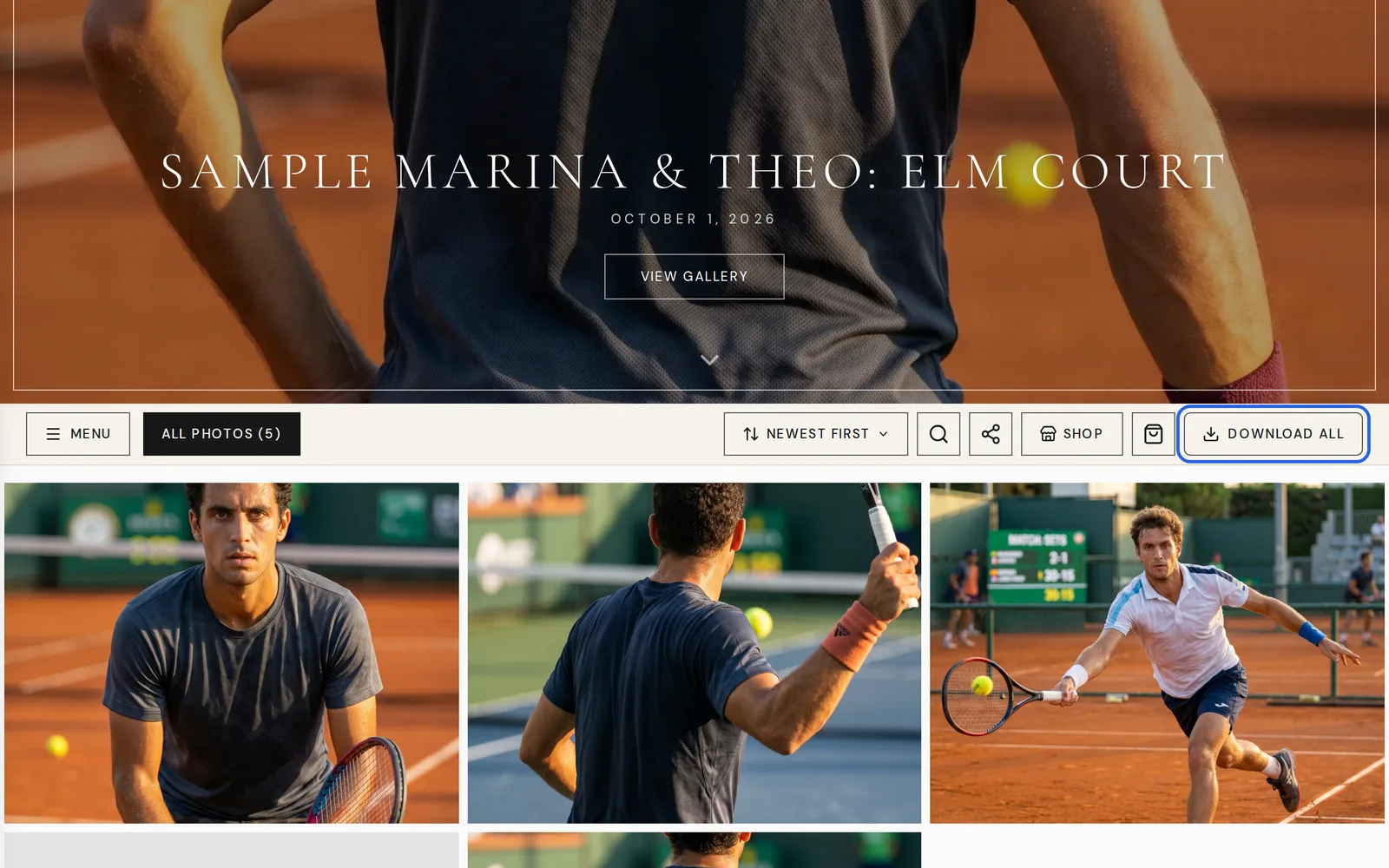
In your photo gallery, choose Download All in the toolbar to save every photo.
Step 3
Download, Favorite Or Share A Single Photo
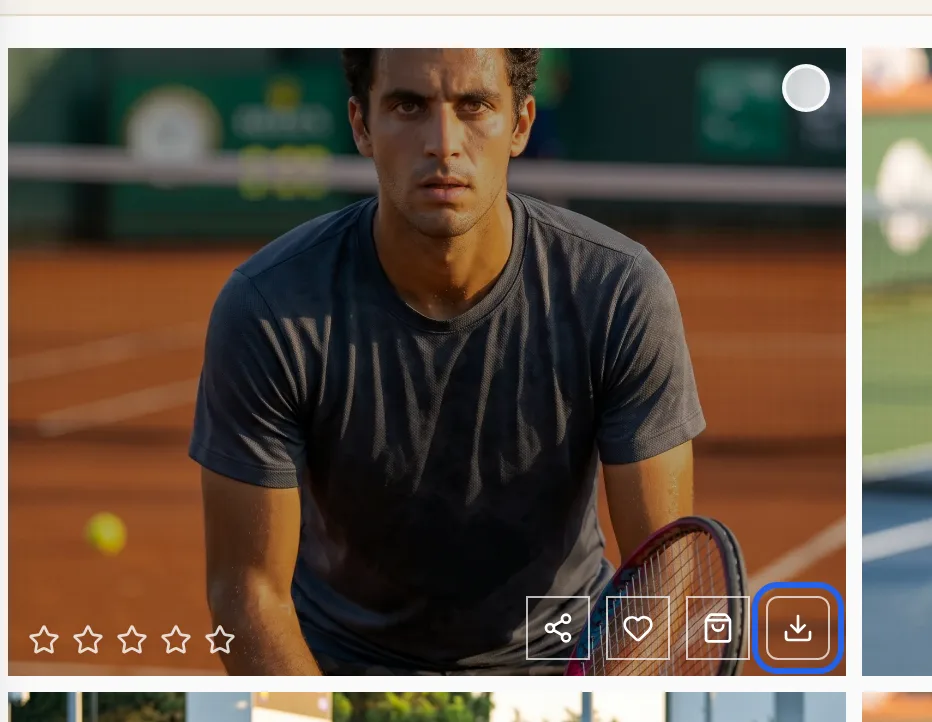
Hover over a photo on a computer, or tap it on your phone, to see its buttons: share, favorite, order a print and download. Choose the download button to save just that photo.
Good To Know
- Editing typically takes about 3–5 weeks after your event. We email you, and show it under Galleries, the moment everything is live.
- The portal says: "You're viewing watermarked photo previews. Sign the Photography & Videography Release to download full-resolution photos and access the film." It also says signing takes about a minute.
- Download All is how you grab a full zip from the gallery site.
- The Galleries page reminds you to "keep a backup copy off your phone."
- The gallery asks for your email so it can save your favorites and ratings and remember them when you return. See How To Favorite And Share Your Photos.
- For the whole delivery process, read How Photo And Film Delivery Works.
If Something Looks Different
- "Delivery is in progress. Check back soon, or open Galleries from the sidebar when your links go live." Your files are not ready yet, so check back soon.
- "Your galleries will appear after your event." Photos and film links show up once we capture and edit your day.
- "Sign the media release to unlock downloads." Sign the release, then try the download again.
- "Failed to download photos. Please try again." Try the download again. If it keeps failing, message us from your portal.
- "Enter the password to view this gallery." If you do not have the password, the gallery says to contact the photographer.
- Once delivery is complete, open Galleries in your portal to check your photo and film links.
More fixes are in Client Portal Troubleshooting.
Frequently Asked Questions
When will my photos and video be ready?
Editing typically takes about 3–5 weeks after your event. While we edit, your Home page shows that we are crafting your story. We email you, and your Galleries page updates, the moment everything is live.
Can I download every photo at once?
Yes. Open your photo gallery and choose Download All in the toolbar at the top of the gallery.
Where do I find our film?
On the Galleries page in your client portal, each event has a Film / video row. Choose Watch to open it.
Why do my photos show a watermark?
You are viewing watermarked photo previews. Sign the Photography & Videography Release to download full-resolution photos and access the film. The portal says it takes about a minute.
Is there another place to find my media?
Yes. You can also use Media on your event's project page.
Why does the gallery ask for my email?
The gallery asks for your email to save your favorites and ratings. It remembers your selections when you return.
Still Need Help?
Message us from your client portal or email support@candidstudios.net.
Contact UsRelated Articles
- How To Favorite And Share Your PhotosFavorite photos to save them, and share your gallery or individual images with friends and family.
- How To Watch Your Film And Leave FeedbackWatch your film in the client portal, leave timestamped comments, and approve it or request a revision.
- How Photo And Film Delivery WorksHow long editing takes, where your photos, film and RAW files appear, and why you sign a release before downloading full-resolution photos.
- How To Message The Candid Studios TeamSend a message about your event from your client portal, or reach us by email.
Last updated 2 min read