
How To Complete Your Pre-Production Questionnaire
Fill out the pre-production questionnaire to share your timeline, vendors, songs and must-have shots before your day.
Quick Answer
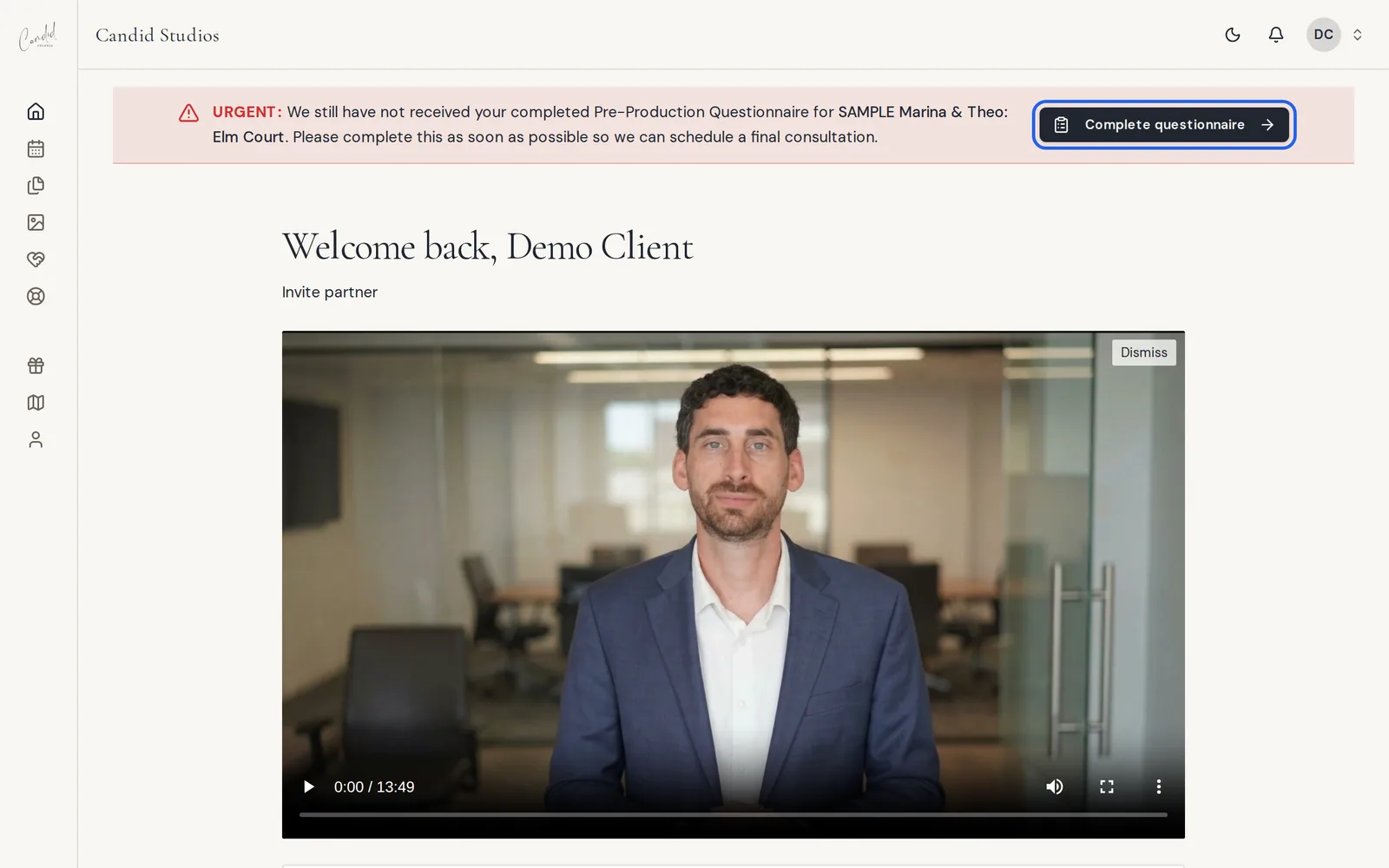
From Home, choose Complete questionnaire in the reminder at the top, or open Event and choose Complete your questionnaire. It covers timeline, vendors, songs and must-have shots. Save anytime and finish before your day.
- Before your day recommended
- Questionnaire in your portal
Your pre-production questionnaire covers timeline, vendors, songs and must-have shots. Save anytime and finish before your day.
Step 1
Open The Questionnaire From Home
Until the questionnaire is submitted, a reminder at the top of the portal has a Complete questionnaire button. Choose it to open the form.
Step 2
Fill Out The Sections
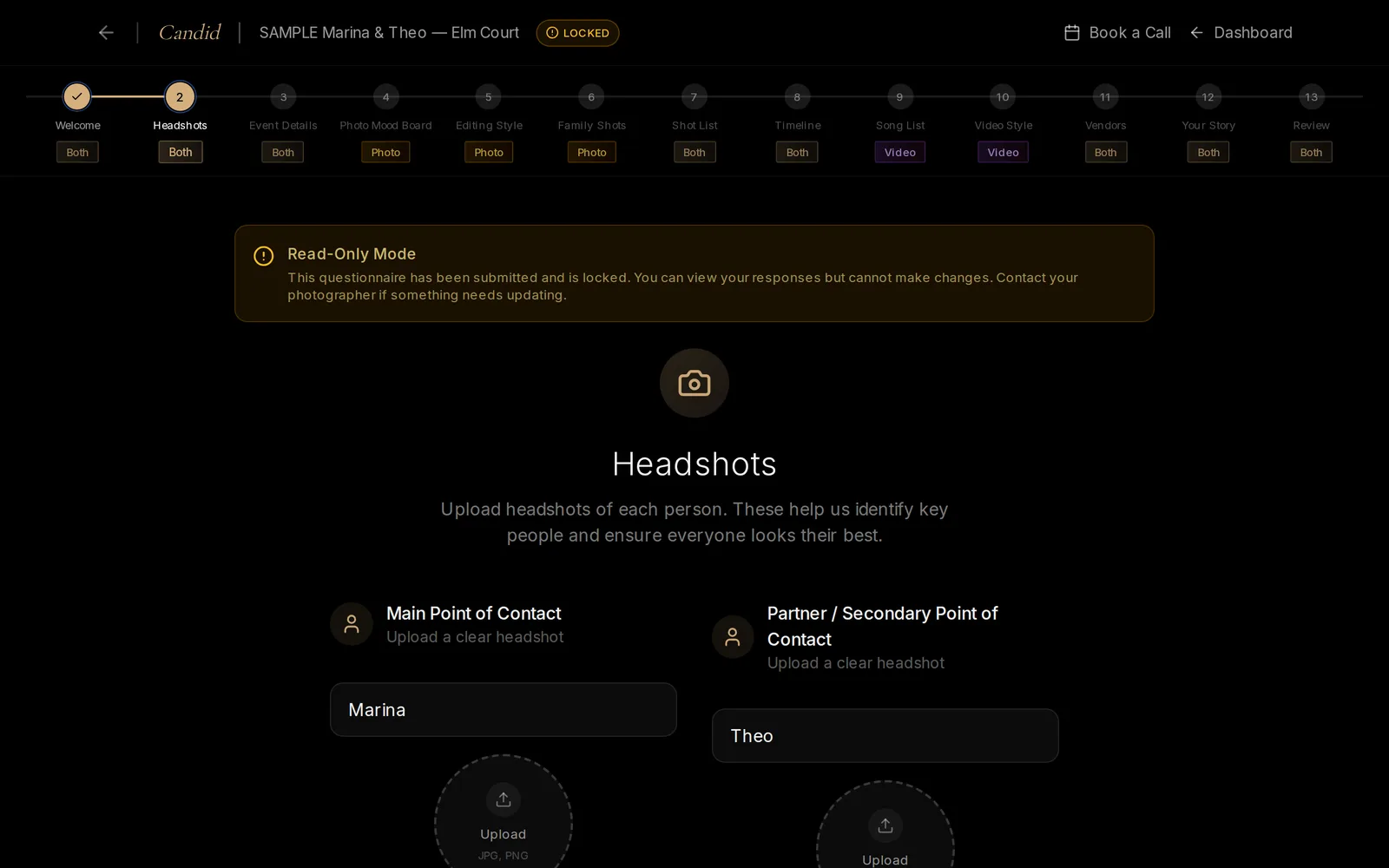
The questionnaire has 13 sections down the side, each marked Both, Photo or Video. These include Welcome, Headshots, Event Details, Photo Mood Board, Editing Style, Family Shots, Shot List, Timeline, Song List, Video Style, Vendors, Your Story and Review. Save anytime as you go.
Good To Know
- The portal describes the questionnaire as a way to share your vision, timeline, family photos, editing preferences and more.
- You can save your progress and resume anytime.
- Sections marked Photo are Photo Mood Board, Editing Style and Family Shots. Sections marked Video are Song List and Video Style. The rest are marked Both.
- If you have an engagement session, its questionnaire asks about location preferences, outfit ideas and the vibe you are going for.
- Once your answers are in, the portal says: "We have your timeline and preferences, thank you. You can review your answers anytime."
- The reminder on Home asks you to complete the questionnaire "so we can schedule a final consultation."
If Something Looks Different
- Read-Only Mode: "This questionnaire has been submitted and is locked. You can view your responses but cannot make changes." Contact your photographer if something needs updating.
- A loading message: "We couldn’t display this questionnaire. Refresh to load your saved answers." Or: "We couldn’t load your questionnaire. Your saved answers have not changed."
- An old invitation link: "Older or expired invitation links still work with the account for your project. You can also open the latest invitation from Candid Studios." If you are asked to sign in, use "Sign in to your project account."
- No questionnaires listed: "Questionnaires will appear here once you have a project."
Still stuck? See Client Portal Troubleshooting.
Frequently Asked Questions
Can I edit the questionnaire after submitting it?
No. The form locks once submitted. Contact your photographer if something needs updating.
Do I have to finish it in one sitting?
No. You can save your progress and resume anytime, then finish before your day.
What if the questionnaire will not load?
Refresh to load your saved answers. If the page says it could not load your questionnaire, your saved answers have not changed.
Where do I update the details from my project file?
The portal shows these details as information from your project file. Update project details in your Pre-Production Questionnaire.
Still Need Help?
Message us from your client portal or email support@candidstudios.net.
Contact UsRelated Articles
- How To Invite Your Partner To Your Client PortalGive your partner their own access to your event so you can plan together.
- How To Get Proof Of Insurance For Your VenueDownload our certificate of insurance or copy a link to forward to your venue coordinator.
- What To Expect After You Book With Candid StudiosFollow the Your Journey tracker in your client portal from booking to delivery, and see what to do at each stage.
Last updated 2 min read